Running Tests - Manual Execution
If a test is specified with test steps and test conditions, you are able to manually execute the test case. Open a test case and click on Run.

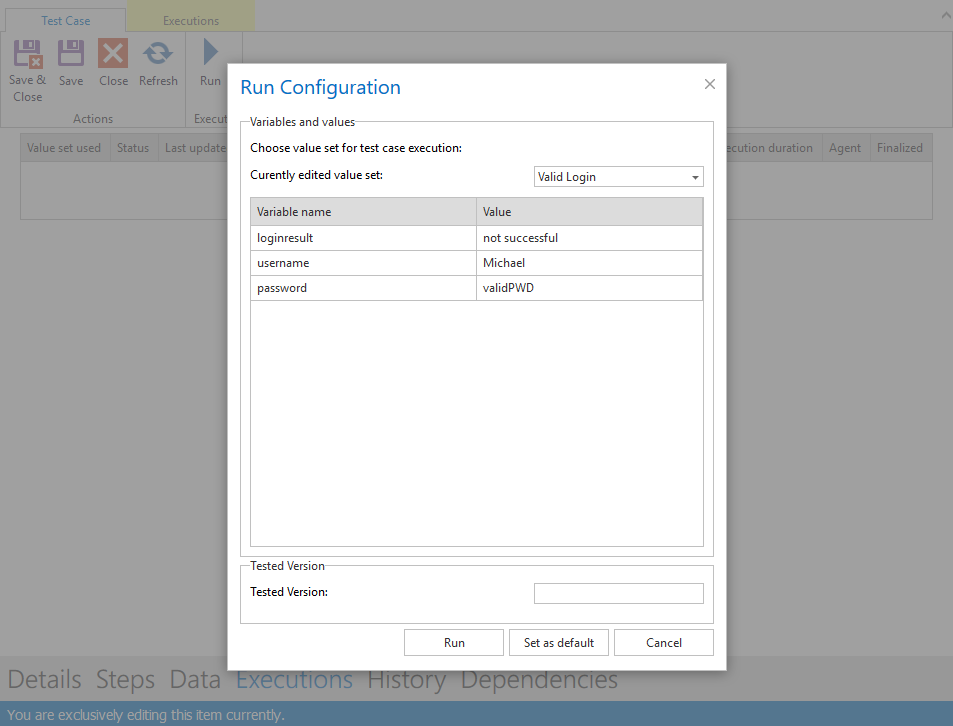
Clicking Run opens a configuration window where you can enter the tested version and choose the value set. The value set is described in section Variable Manager. Start the execution by clicking Run.
A new tab provides step-by-step the tasks to be performed in the given test case. The screenshot below shows a conditional step. Document the current behavior in Actual results.
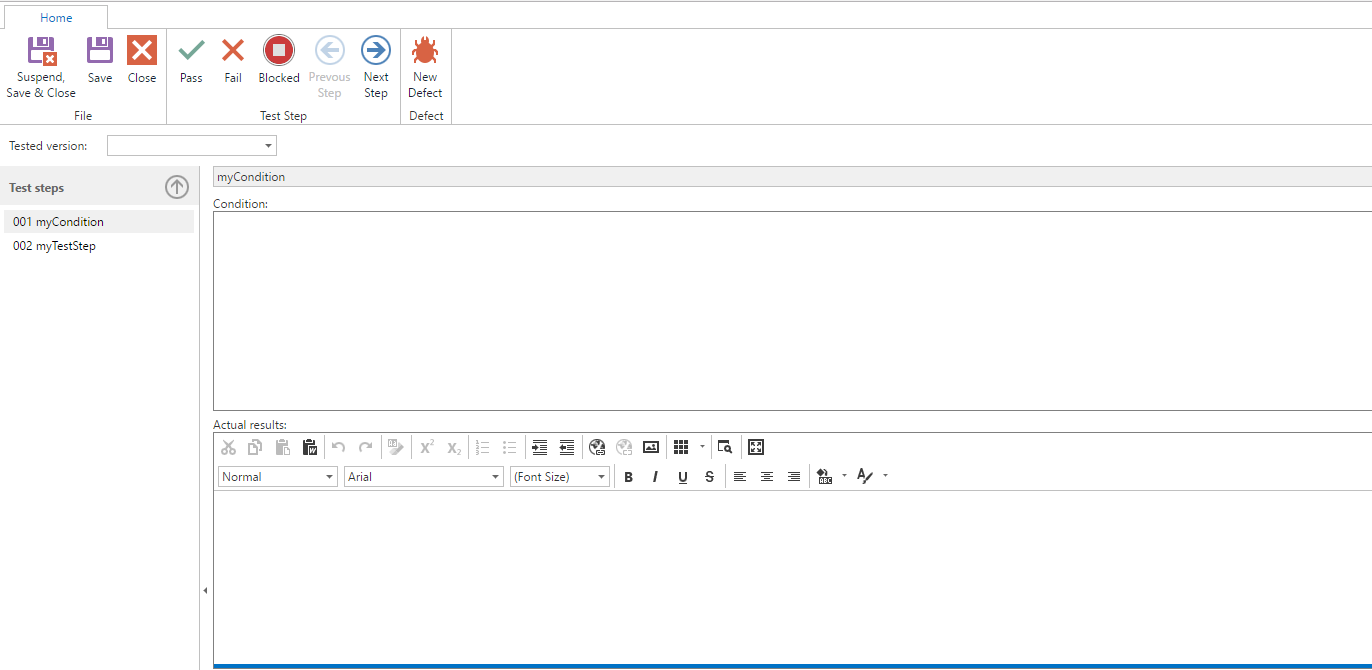
If the condition is passed, we confirm the result by clicking button Pass. The first step is green and the next step is displayed automatically.
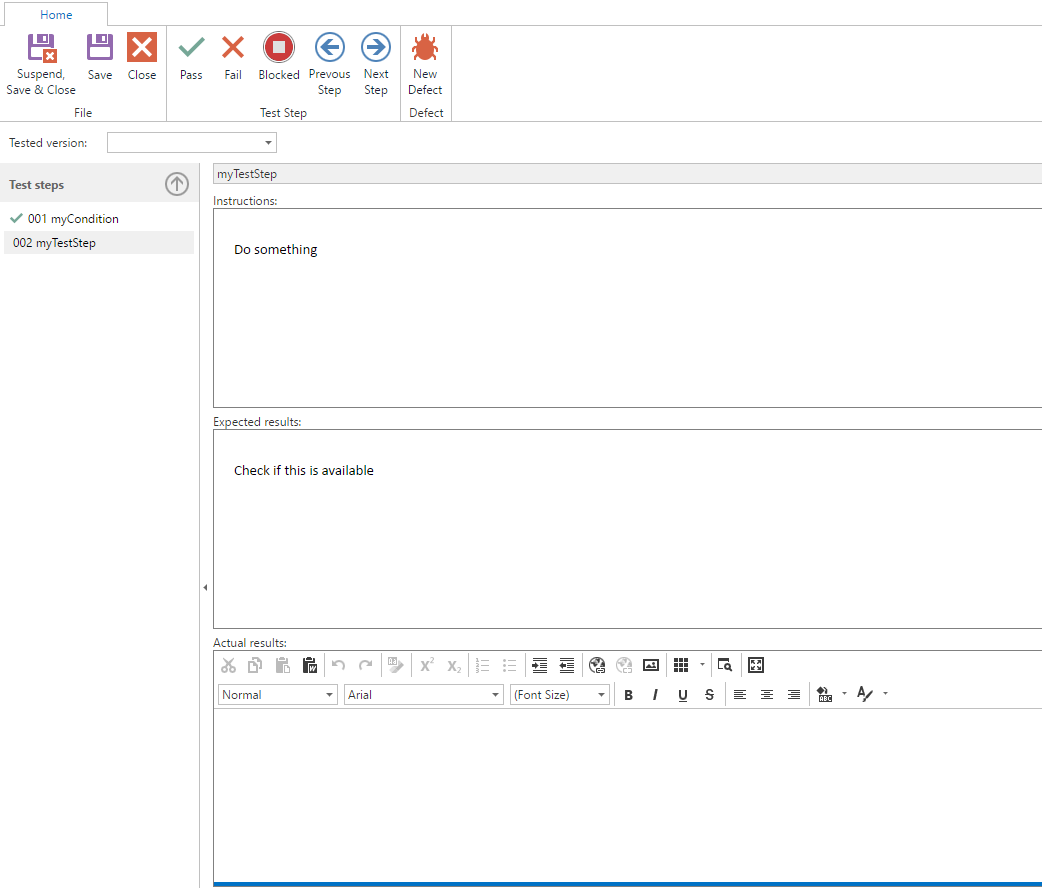
The second step is a test step. Here we find an Instruction and an Expected result as well as the Actual results field.
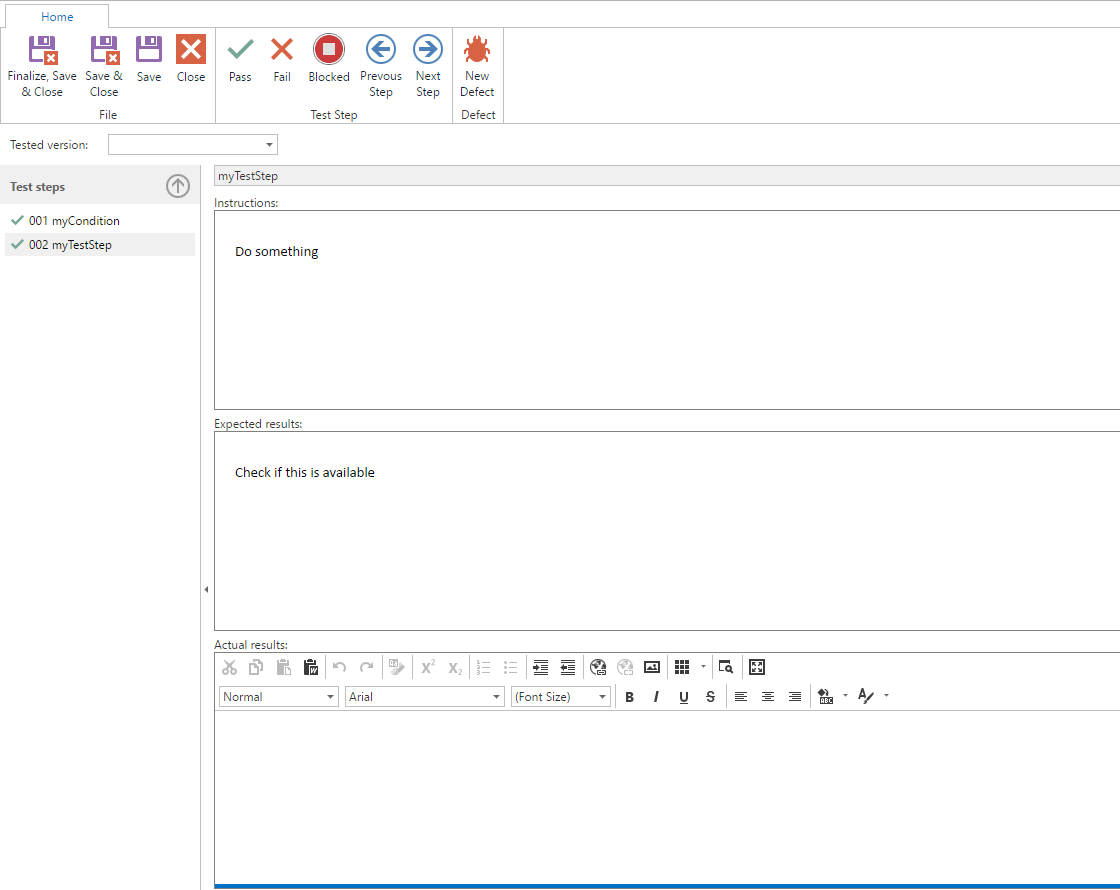
When the test is completed, click on Save & Close.
The test was executed and the execution can be found at the bottom of the test case.
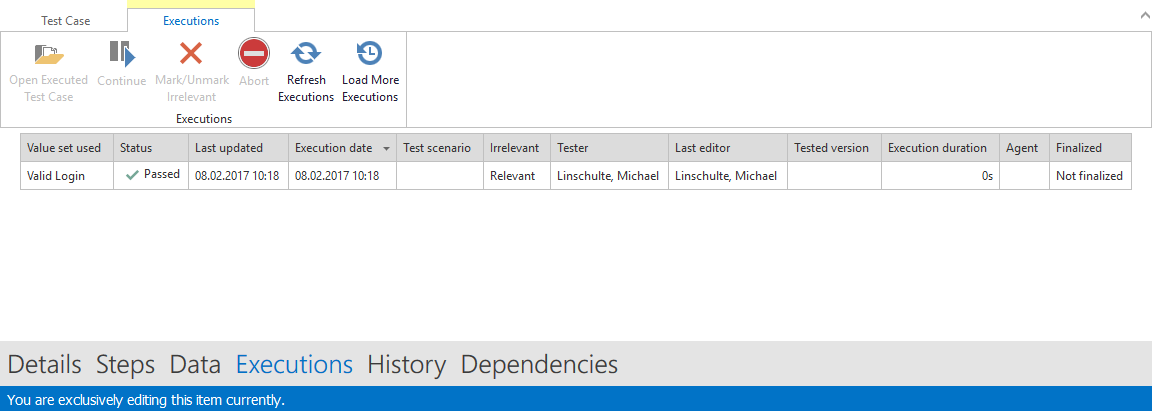
Clicking the Continue button can continue an executed test case if it is not finalized. Test results can be specified again. Furthermore, an execution can be marked as Irrelevant.