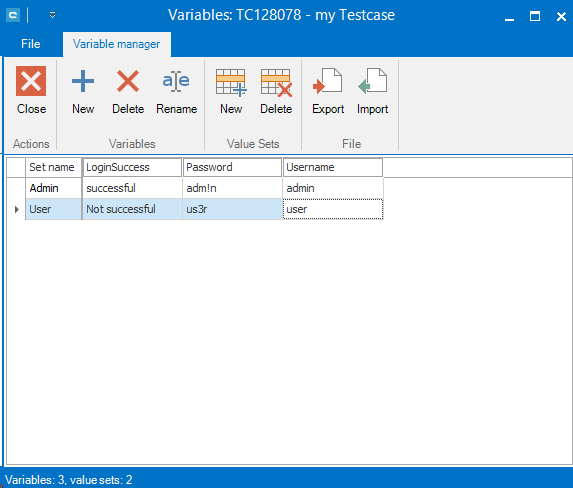
A test case can be parameterized by test data. This example shows a login example, where different user data has to be entered into a login screen. Open a test case and open the Variable Manager by left-click on the button:
Here, data is specified similarly to Excel. The Set name represents the name of the test value set, and the column represents the test variable. You can specify the data as follows:
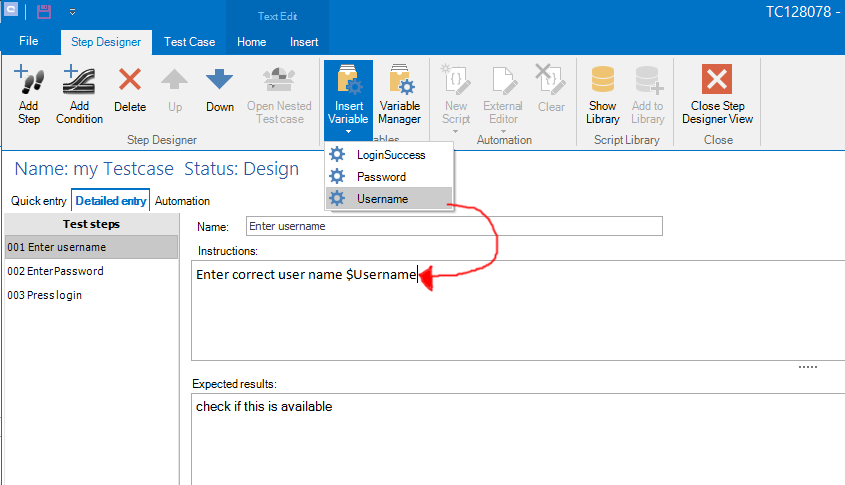
You can import and export the test data into Excel if you want to handle large amounts of data or if you want to reuse existing test data. Following the specification, you can close the Variable manager. Now, open the Step designer in order to parameterize the test steps. You can insert your parameter Username by clicking on Insert Variable and then clicking on Username. The placeholder is inserted.
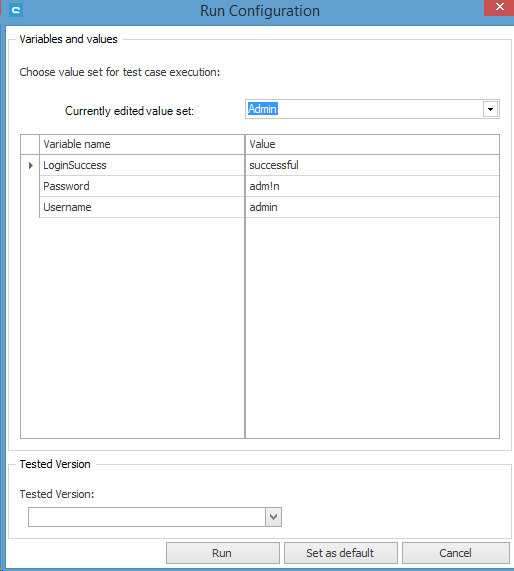
If you close the step designer, you can start the test execution. A new window is opened where you can choose the value set via a drop down menu.
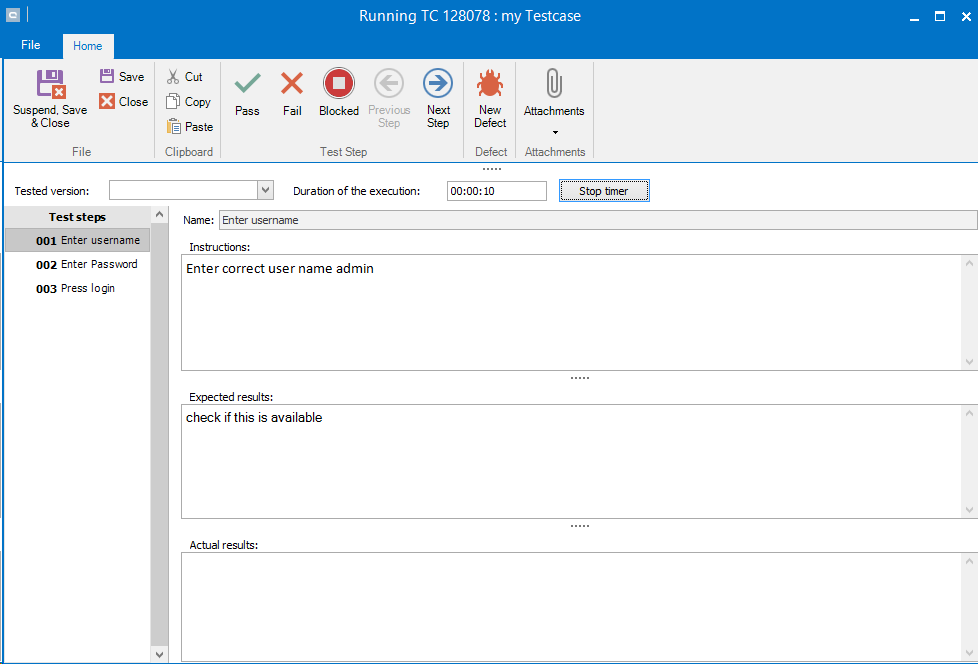
All values can be displayed in order to choose a correct value set. After the optional entering of Tested Version you can Run thetest case. As you can see in the following screen, the value is inserted into the value placeholder.
If you want to execute all or a selection of parameterized tests, you can take a look at Test scenario.