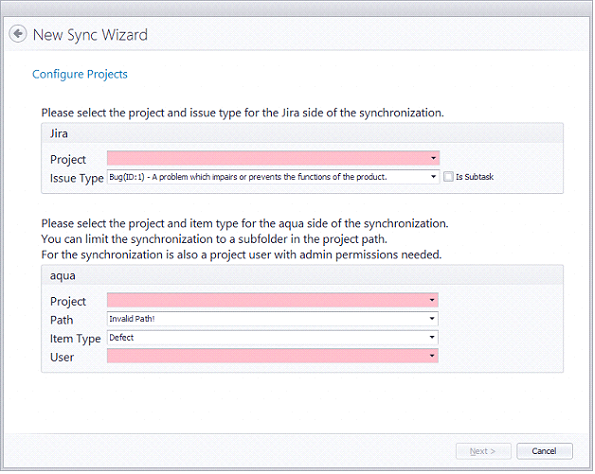
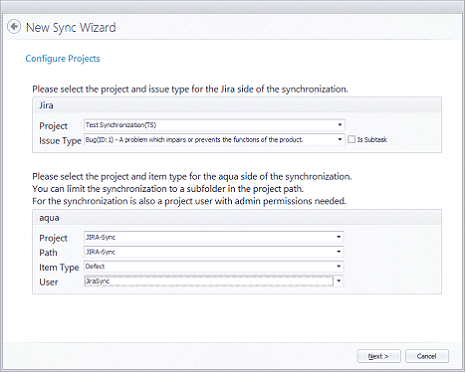
The step “Configure Projects” is one of the most important steps of the wizard. This step specifies which projects should synchronize with each other.
Now, we define which Jira project should be used for the synchronization with the aqua project. This is done by selecting the right/correct project and available issue type. Jira bugs can only be mapped with aqua defects. All other types can be mapped with aqua requirements.
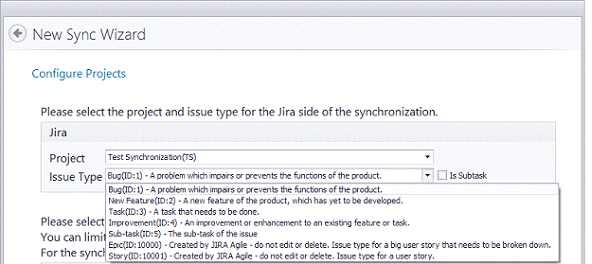
In the above screen the project’s name is “Test Syncronization (TS)” and it is possible to select different Issue Types such as:
• Bug
• New Feature
• Task
• Improvement
• Sub-task
• Epic
• Story
The tool recognizes a special Jira issue type called Sub-task. The creation of a subtask is performed after creating an existing “task” in Jira. The Sync Wizard has a different configuration for this type of issues.
Similar to the process of choosing a project from Jira, the Sync Wizard needs to know which aqua Project should be synchronized. The field Path represents the project hierarchy established in aqua to find our project path more easily. Item Type shows the supported aqua types. In this example, we choose Defect.
The User will be the aqua user who will be shown as the aqua types “Owner” in aqua. This drop-down menu shows all active users in aqua, even those who have no administration rights. Please choose the API-User “JiraSync” and click on the Next >button.
The next step informs the user that the wizard has found both aqua and Jira projects and that configuration details (such as custom fields and values) were loaded. Click on Next >.